Score Cast scoring, done right
There is no scoreboard software to install on the LED system and nothing extra to buy from the screen supplier. The score is a web page, so the work is getting a browser onto the screen, choosing a layout that reads from the far side of the pitch, and keeping the computer awake for the afternoon. This page walks through each of those.
- Works with an LED controller or sending box that has an HDMI input
- Jumbo view: the two scores at the full height of the screen
- High Contrast and Retro LED themes for bright outdoor panels
- A header line for the fixture and a footer line for a sponsor
- Score from a phone on the touchline; the phone stays awake while the controller is open
- If the connection drops, the screen keeps the last score and catches up when it returns
From setup to scoring in 60 seconds
Create a game
Pick your sport and get a short game code.
Score from your phone
Control the score on your phone — the screen updates instantly.
Getting the score onto the LED screen
Most club LED screens are driven by a controller or sending box (Novastar and similar brands are common) that maps an ordinary video signal onto the panels. If yours has an HDMI input, these are the steps. If it only plays files loaded from a USB stick or a supplier app, ask your installer whether it has a live HDMI or DVI input before you start.
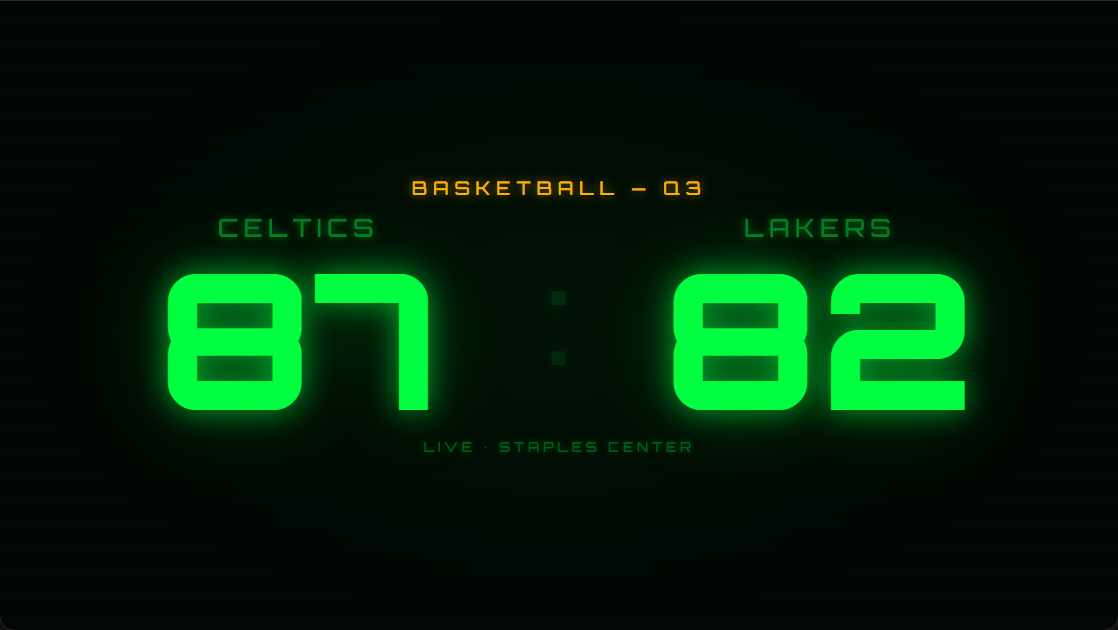
- 1
Find the input on the LED controller
Look at the box the screen is cabled to, usually in a cabinet, the clubhouse or a gantry. You want an HDMI (or DVI) input. Check with whoever installed the screen which input it shows, and whether the box has to be switched from its playlist to the live input.
- 2
Connect a laptop, mini PC or streaming stick
A spare laptop or a small mini PC on HDMI is the most dependable. A Fire TV Stick or similar plugged into the input also works, using its web browser. Run the computer on mains power and set it to never sleep and never turn the display off; the scoreboard page does not keep the screen computer awake by itself.
- 3
Create the match and open the display link
Create the game in Score Cast and copy the Display link from the setup screen (or scan its QR code). Open it in the browser on the LED computer, then press the Fullscreen button on the scoreboard so the browser bars and tabs disappear.
- 4
Match the picture to the panel
LED screens are often an unusual size in pixels, such as a long, shallow strip or a near-square panel. Set the computer to the output resolution the controller expects (your installer will know, or it is in the controller settings) and check the picture is not cropped at the edges. The scoreboard fills whatever window it is given, so there is no special layout to build.
- 5
Pick a view you can read from the far touchline
Switch to Jumbo view in the display settings on your phone for scores that fill the height of the screen. Try the High Contrast theme (white on pure black) or Retro LED, then walk to the far side of the pitch and check it before kick-off, in daylight if the screen faces the sun.
- 6
Score from the touchline
Keep the controller open on your phone and tap as the points go in. The phone and the LED computer each need their own internet connection, but they do not need to be on the same Wi-Fi: the scorer can use mobile data while the screen uses the club network.
Which view suits an LED screen?
| View | What it shows | Best for |
|---|---|---|
| Jumbo | The two scores at the full height of the screen, team names above them, and the half or period. Your header line, if you set one, takes the place of the sport and half label. | Smaller or lower-resolution LED screens, and grounds where the crowd is a long way off |
| Standard | The full layout for the sport: for rugby, tries, conversions, penalties and drop goals under each score, plus cards and the half. Header and footer lines in large type. | Larger screens viewed from closer up, such as a clubhouse video wall |
On a low-resolution outdoor screen, fine detail is the first thing to go, so Jumbo view is usually the right starting point. Keep team names short, because long names can wrap or run out of room on a narrow screen. If you want the half shown on screen in Jumbo view, leave the header line empty. The view can be switched from the phone at any time, so it is worth trying both before the first match.
Sponsor text, the watermark and the PIN
Every scoreboard has an optional header line and footer line. A sensible use is the fixture or competition in the header and the match sponsor in the footer. Both are plain text, set when you create the match, and the header can also be changed from the phone during the game. There is no logo or image upload, and the scoreboard does not rotate adverts, so any video adverts your screen runs between matches stay with the screen’s own playlist.
On the free plan the display carries a small score-cast.net link and QR code in the bottom corner, which lets supporters follow the score on their own phones. Any paid plan, or a one-off Tournament Pass for a single event, removes it. Set a controller PIN when you create the match: the display is on public view all afternoon, and the PIN means only your scorers can change the score.
If the Wi-Fi drops
Score Cast is not an offline system: it needs an internet connection at both ends, the computer driving the LED screen and the phone doing the scoring. What happens when a connection drops is predictable, though. The screen keeps showing the last score it received rather than going blank, and when the connection comes back it reconnects on its own and jumps to the current score. On the phone, the controller shows an OFFLINE marker and a “Connection lost” message, so the scorer knows the screen may be behind. Once you are back online, look at the screen and correct anything with the buttons or Undo. If the screen computer is restarted while the connection is down, it cannot show a score until the connection returns.
Club Wi-Fi rarely reaches the far side of a ground. A network cable to the LED computer, if there is a socket near the controller, is the most reliable option; otherwise a 4G or 5G router or a phone hotspot near the screen does the job. Test it on a training night rather than on match day.
Perfect for
Frequently asked questions
Is the scoreboard free?
Yes. A free account lets you create a game, score it from your phone and show it on a screen, one scoreboard at a time, with a small score-cast.net mark in the corner. Watching and spectating are free for everyone. Paid plans remove the mark and start at $4.99/month.
Do I need to install anything?
No. Score Cast runs in any web browser on your phone, TV, laptop or tablet. There is nothing to download.
How do the phone and the TV stay in sync?
Every game has a short code. Open the display on the big screen and the controller on your phone using the same code — scores sync in real time over the web.
Can I use it for live streaming?
Yes. Score Cast includes 8 transparent overlay styles that drop into OBS, Streamlabs, vMix or YouTube Live as a browser source, with live team colours and indicators.
Can Score Cast run on our LED screen?
If the LED controller or sending box has an HDMI or DVI input, yes: anything that can show a web page on that input can show the scoreboard. If the screen can only play files loaded in advance, from a USB stick or the supplier’s software, it cannot show a live score; ask your installer about a live input.
Do we need special LED scoreboard software?
No. The scoreboard is a web page. The LED controller treats it like any other picture from a computer, so nothing needs installing on the screen system itself.
What resolution should the computer send to the LED screen?
Whatever the LED controller is set up to receive. LED screens are often an unusual shape in pixels, and the controller maps the incoming picture onto the panels. The scoreboard fills the browser window, so set the computer to the resolution the installer gives you and check nothing is cropped at the edges.
Can we show sponsor messages on the LED screen?
Yes, as text. Each scoreboard has a header line and a footer line, which suit the fixture name and a sponsor message. There is no logo upload, and the scoreboard does not rotate adverts.
Does the scorer’s phone need to be on the same Wi-Fi as the screen?
No. Both connect over the internet, so the scorer can use mobile data on the touchline while the LED computer uses the club network, a cable or a mobile router.
Will the score-cast.net mark show on our LED screen?
On the free plan, yes: a small link and QR code sit in the bottom corner. Any paid plan, or a Tournament Pass for a single event, removes it.